Welcome to Y2Mate, a browser-based YouTube downloader and converter for saving available videos as MP3 music files or MP4 videos. Use keyword search to find a title, or paste a YouTube Link to open its conversion choices directly. The service brings selection, conversion and browser downloads into one workflow, with formats and availability determined by the chosen source and conversion service.
Trending
The local chart is temporarily unavailable. Search for a title or artist above.
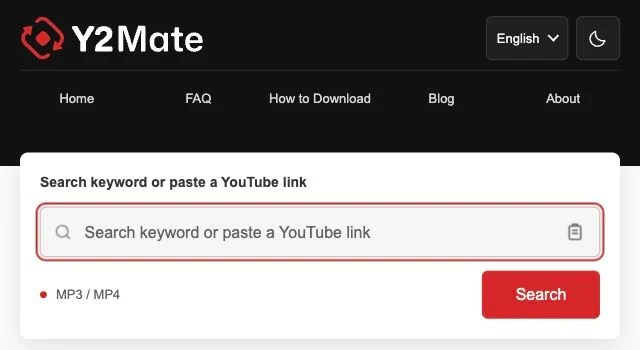
Enter a song name with its artist and press Search, or paste a copied YouTube Link and press Convert. If clipboard access is declined, use your device's normal paste command.
Select a Video and MP3 or MP4 Format
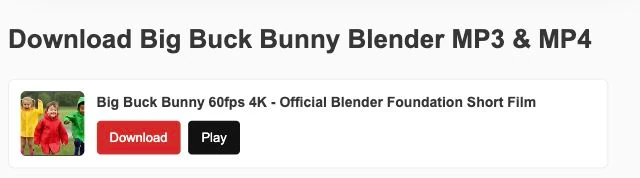
Choose the intended video from the search results, then inspect its available formats. Select MP3 for music or MP4 for video, using a bitrate or resolution actually offered for that selection.
Download the Prepared File
Select Download once the file becomes available. Allow the browser to save it, respond to any destination prompt, and wait for the transfer to finish before opening the saved file.
Y2Mate Converter Search and Download Controls
One Search Field for Keywords and YouTube Links
Use the same form for discovery and direct selection. Keywords lead to matching results; a recognized YouTube Link opens conversion. Replace the existing text completely when switching between these methods.
Trending Music Search and Related Songs
Download beside a Trending chart entry starts a song search so you can select a matching video. For related songs, the Download control opens conversion for the selected entry.
Browser Interface and Dark Appearance
The browser layout keeps search, selection and download controls within the webpage. Dark appearance changes the page theme for your viewing preference, while leaving the selected file's bitrate and resolution unchanged.
YouTube to MP3 Converter for Smaller Music Files
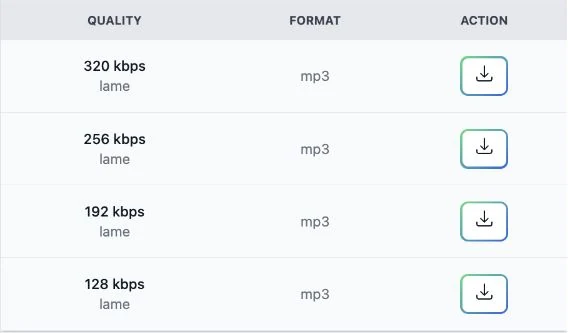
For listening without video, the YouTube MP3 Downloader keeps the download focused on music. MP3 320kbps, 256kbps and 128kbps may be offered, depending on the source and conversion service. For equal duration, 128kbps generally uses less storage, while 256kbps and 320kbps allocate more data to the music. A higher setting cannot restore missing detail. Choose an MP3 download that suits both your listening needs and the space available on your device.
YouTube to MP4 Downloader for Offline Video Files
Use the YouTube MP4 Converter when you need visible instructions, subtitles contained in the video, or other on-screen details. Depending on source and converter availability, MP4 choices may include HD at 1080p or 720p, plus 480p, 360p, 240p and 144p. A smaller resolution reduces storage demands but can make detailed diagrams harder to follow. Compare the offered settings against your viewing needs; the presence of a video does not mean every resolution is available.
Find Videos with Keywords or a YouTube Link
Search works best when the words distinguish one version from another: include an artist, exact title or channel name rather than a broad topic. Before opening conversion, compare the result's duration with the version you intended. A known YouTube Link takes Y2Mate Downloader directly to that video's converter, avoiding another search. Neither method changes source restrictions or establishes permission to download.
Find Browser Downloads on Android, iPhone and Desktop
The YouTube Converter runs in a browser without required software installation. Android users can check Downloads in the browser or file manager; iPhone users should open Files and inspect the browser's configured destination. On desktop, use the download history to reveal the saved folder. A completed transfer may not appear automatically in a music app, so locate the actual file before assuming it is missing or requesting another copy.
Supported YouTube Link Formats
Recognized single-video YouTube Links open conversion for one video at a time. The accepted patterns below identify compatible addresses; recognition alone does not establish source availability or conversion success.
Standard Desktop URLs:youtube.com/watch?v=VIDEO_ID
Shortened Share URLs:youtu.be/VIDEO_ID
YouTube Shorts URLs:youtube.com/shorts/VIDEO_ID
Mobile URLs:m.youtube.com/watch?v=VIDEO_ID
Embedded Player URLs:youtube.com/embed/VIDEO_ID
Is Y2Mate Safe to Use?
Safety depends partly on the pages, advertisements and files you encounter, so assess each action rather than trusting a familiar button label. Keep your browser updated and its security protections enabled. Never supply a YouTube password, approve unrelated permissions or accept an unwanted software installation. Close suspicious advertisements that redirect you to payment or installer pages, and stop if the downloaded file differs from the MP3 or MP4 you selected.
Troubleshooting YouTube Links and MP3 Conversion
Check the complete YouTube Link before retrying, especially if it was copied alongside a message or title. If MP3 conversion fails before a file is prepared, note the error and allow time for temporary third-party service problems to clear. If preparation succeeds but saving fails, inspect browser download permissions, free storage and connectivity. A removed or restricted source may remain unavailable; repeated requests cannot resolve those access conditions.
Copyright Disclaimer
Disclaimer: Y2Mate is an independently operated YouTube downloader and converter. It is not affiliated with, endorsed by, or sponsored by YouTube or Google. YouTube and related names belong to their respective owners. References to those services describe compatible links and do not imply an official partnership.
Download only content that you own or have permission to save. Follow the applicable licence conditions, including attribution where required, as well as copyright law and YouTube's Terms of Service. Personal or non-commercial use does not automatically grant permission to copy or redistribute someone else's content.
Choose Download Quality and Locate Saved Files
Confirm the video's channel and duration to avoid saving a short excerpt instead of the intended version. For longer files, balance an offered bitrate or resolution against available storage rather than choosing the largest setting automatically. Keep the browser's downloads panel accessible and identify the destination folder, making the finished file easier to find or move afterward.
Frequently Asked Download and Conversion Questions
What kind of downloader is Y2Mate?
Y2Mate is a YouTube downloader and converter that uses a browser-based workflow. Search results help you select a video, while a recognized YouTube Link opens its conversion page directly. Available choices determine whether you can prepare an MP3 or MP4 file for browser saving.
How can I convert a selected video to MP3?
Paste the YouTube Link or search for the title, then select the intended video. Choose MP3 and an offered bitrate in the conversion controls. After processing provides a downloadable file, save it through the browser and check the transfer status before attempting playback.
Is Y2Mate free, and what costs should I consider?
The website is free to use through your browser, although usage limits and service restrictions may apply. Your connection provider can charge for data, and third-party offers may have separate costs. An unexpected payment request deserves scrutiny rather than being treated as a routine download requirement.
Does the converter require an app or extension?
No app, extension or software installation is required for the website's browser workflow. Search and conversion use webpage controls, and saving uses the browser's download facilities. If a redirected page insists on installing something, close it rather than accepting an unrelated download.
How do I use Y2Mate downloads on Android or iPhone?
On Android and iPhone, use a current browser and check that enough storage remains before saving. Android commonly exposes files through Downloads; on iPhone, check Files at the browser's chosen location. Playback depends on the saved format and available player, so device behavior can differ.
Which MP3 quality settings might be available?
The YouTube MP3 Converter may provide MP3 bitrates of 320kbps, 256kbps and 128kbps, with choices depending on the source and conversion service. Bitrate affects file size and potential quality, but a larger setting cannot add musical detail that the original source lacks.
What should I check when choosing MP4 conversion?
Choose MP4 when you need the video as well as its sound. Check which resolutions the converter offers for that source, and consider whether fine text must remain legible. Higher resolutions generally require more storage; the saved video's playback also depends on your device and player.
Why is a YouTube Link unavailable or not working?
An incomplete YouTube Link or extra text can prevent address recognition. Copy the video's address again and check that it opens on YouTube. If the source has been removed, made private or restricted, a correctly formed address still may not be available for conversion.
What can I do when MP3 conversion cannot finish?
If MP3 conversion fails, first identify whether processing stopped or the browser transfer was interrupted. For processing errors, check source availability and wait before retrying. For interrupted saving, check your connection and storage, then inspect download history rather than starting several duplicate requests.
What precautions make browser downloading safer?
Avoid advertisements that mimic download controls, and never enter a password to unlock a media file. Check the file type before opening it and reject unexpected installers. Keep browser security warnings enabled; a suspicious redirect or permission request is a reason to stop, not weaken protections.
Is a YouTube account needed to sign in here?
No YouTube account is needed, and you do not need to sign in for this conversion workflow. Keep your credentials private. This does not provide access to videos requiring authorization, and an account prompt on another page should not be mistaken for a converter requirement.
How do copyright and legal permission affect downloads?
Check copyright permission, applicable law and YouTube terms before downloading. These are separate considerations: technical availability does not establish authorization. Licence conditions may also limit redistribution or commercial use, so confirm that both keeping the file and your intended use are permitted.